
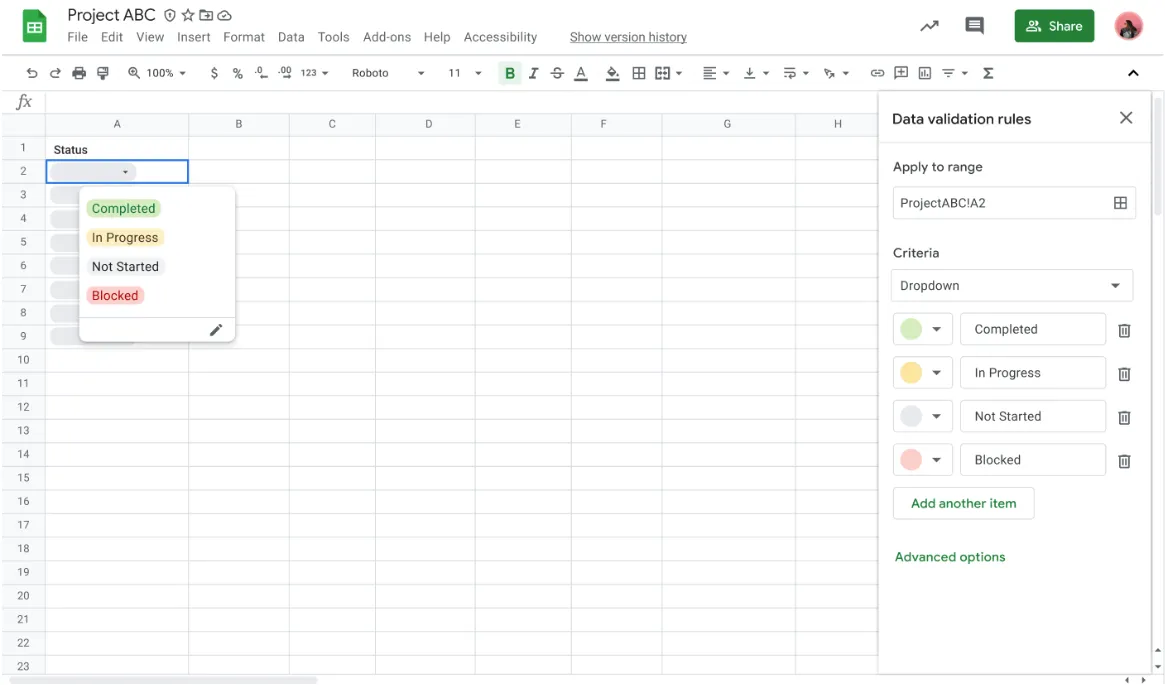
If you are searching for google sheets ai dropdown or google sheets ai data validation, what you usually want is simple: stop messy free-text input before it breaks your filters, summaries, and reports.
The best fit here is usually a two-part workflow: use AI for Sheets to define the final allowed values and clean old labels first, then apply the actual dropdown rule in Google Sheets. That is more reliable than asking a broad AI tool to “fix the whole sheet” in one shot.
Why AI for Sheets fits this workflow
- Draft the final option list: generate a clean, limited set of statuses or categories.
- Normalize old values first: map variants like
done,Done, andcompletedbefore rollout. - Keep the work inside Sheets: use Sheet Agent or formulas without leaving the spreadsheet workflow.
Important nuance: AI for Sheets is the planning + cleanup layer here. The native dropdown control itself still lives in Google Sheets data validation.
Step 1) Open AI for Sheets inside Google Sheets
- Open your spreadsheet.
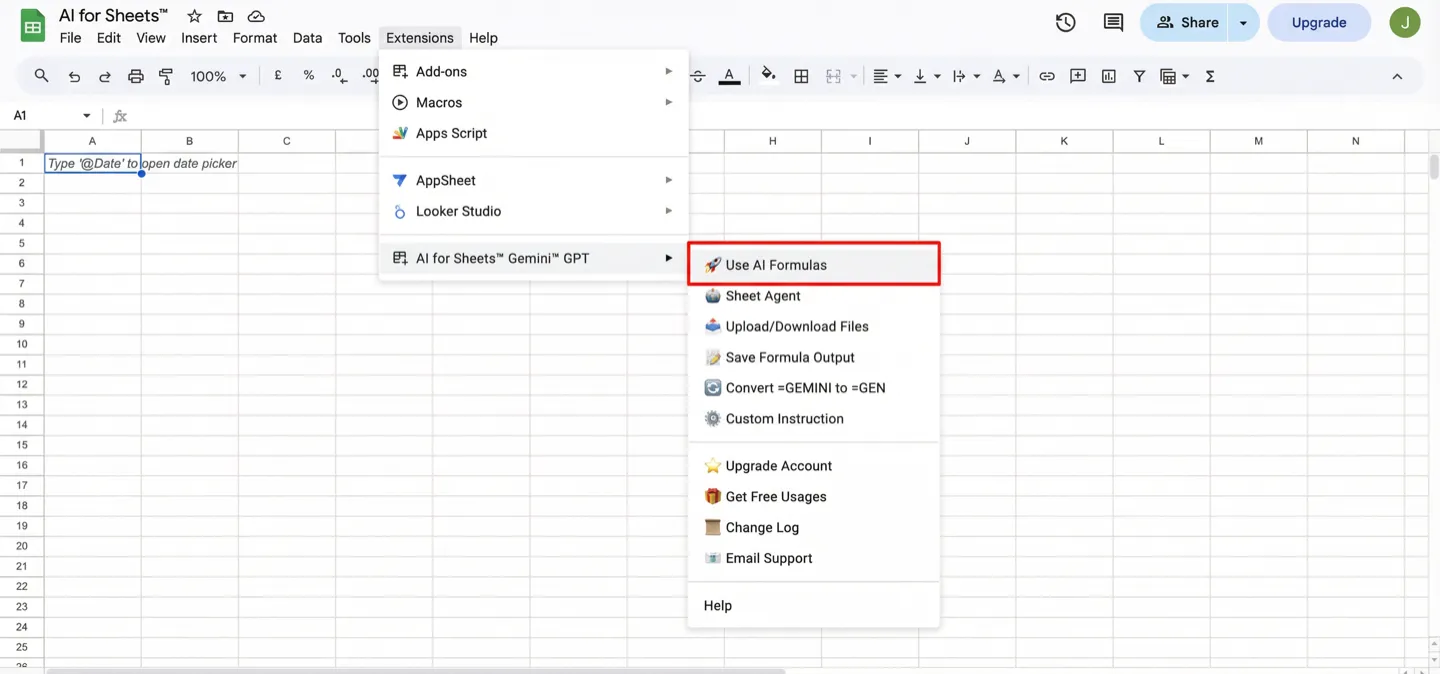
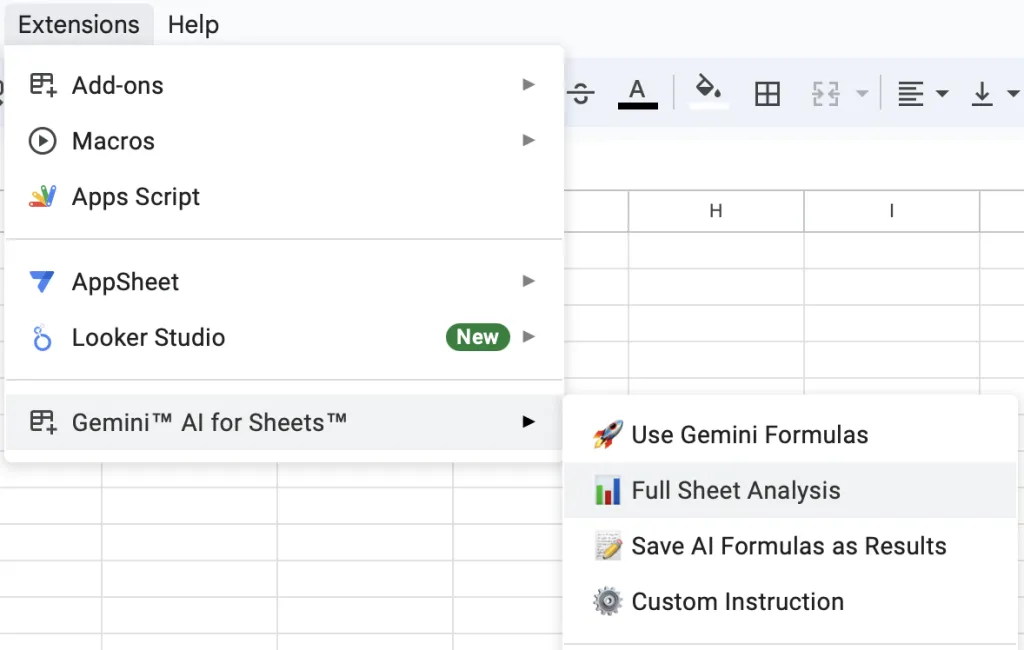
- Go to Extensions → AI for Sheets.
- Use either Use AI Formulas or Sheet Agent.
New user? See Getting started and Sheet Agent.
Step 2) Use AI for Sheets to decide the exact dropdown options
Dropdowns work best when the allowed values are already stable. For example:
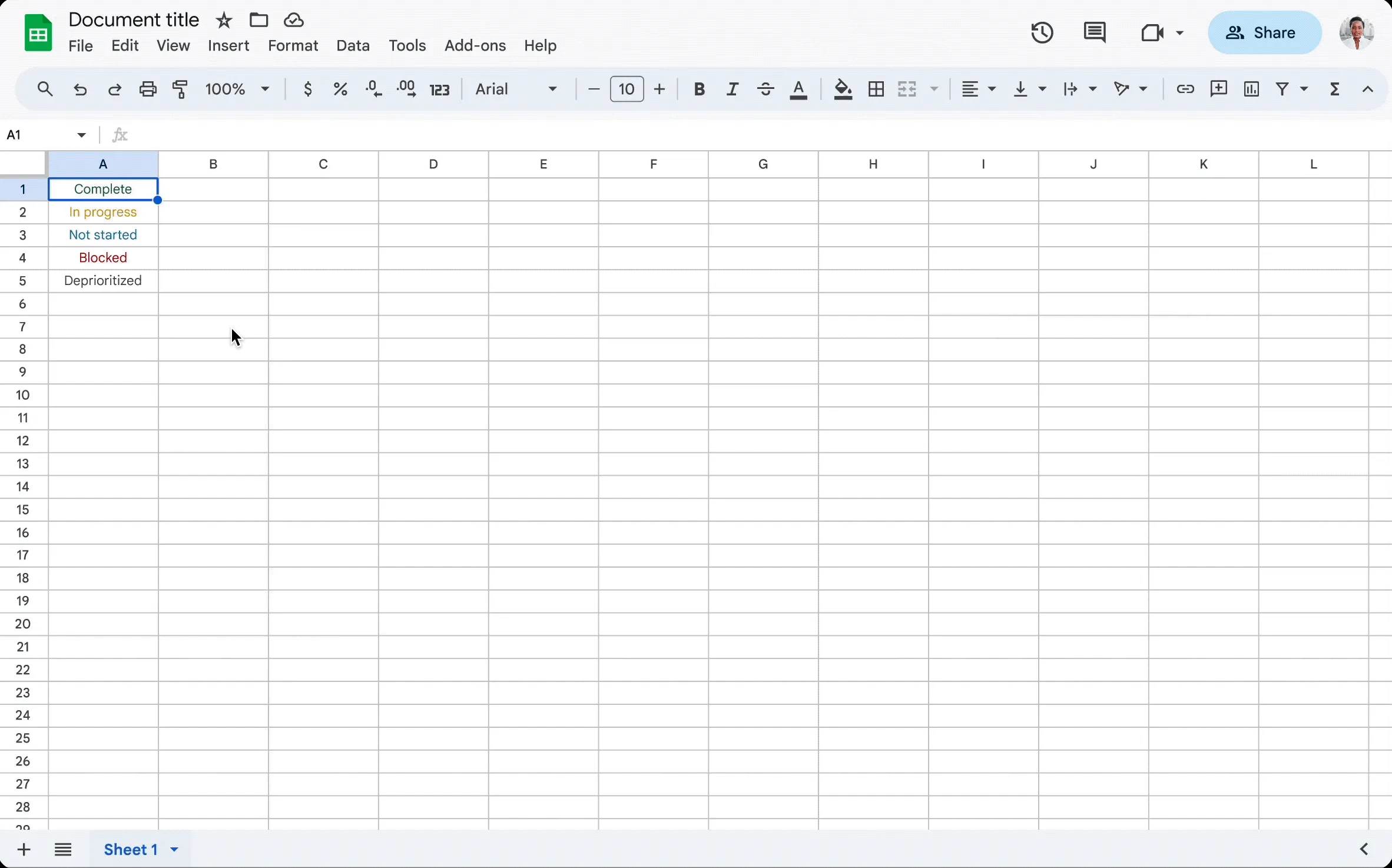
- Status: Not started, In progress, Blocked, Done
- Priority: Low, Medium, High
- Deal stage: Prospect, Qualified, Proposal, Negotiation, Won, Lost
In Sheet Agent, ask for one final vocabulary only. Good prompt:
Review this sheet and propose one clean dropdown vocabulary for the task status column.
Return only the final allowed values in the right order.
Merge duplicates like done, Done, completed, and finished into one standard label.
Do not change the sheet yet.
If you prefer formulas, you can also use AI for Sheets to draft the option list in helper cells first, then review it before applying data validation.
Step 3) Clean old values before you enforce the dropdown
This is where AI for Sheets is genuinely useful. If your sheet already contains inconsistent labels, standardize them first.
Example prompt for Sheet Agent:
Standardize the existing task status values into these labels only:
- Not started
- In progress
- Blocked
- Done
Flag anything that does not clearly fit one of these labels.
If your source values are already messy across multiple columns, first run the cleanup workflow.
Step 4) Apply the dropdown rule in Google Sheets
Once AI for Sheets has helped you settle the final labels, create the actual dropdown using Google Sheets data validation.
- Select the target column or range.
- Open the dropdown / data validation UI in Google Sheets.
- Paste or enter the final allowed values.
- Check the apply-to range carefully before rollout.
Step 5) Keep the scope small and structurally clean
AI-assisted dropdown workflows are more reliable when the target looks like one clear table.
- One header row only.
- One meaning per column.
- No mixed labels like
done,Done,completed. - Test on one table or one column first before full rollout.
Prompt patterns that work better in AI for Sheets
The best prompts usually include four elements:
- Target column
- Allowed values
- Normalization rule
- No-other-changes rule
Example for a sales pipeline sheet:
Prepare a clean dropdown vocabulary for the deal stage column.
Allowed values should be:
- Prospect
- Qualified
- Proposal
- Negotiation
- Won
- Lost
Map old variants into these labels and return the final list only.
Example for a finance review sheet:
Standardize approval status into exactly three labels:
Pending, Approved, Rejected.
List any old values that do not fit cleanly.
Do not change formulas, headers, or formatting.
Important limitations to know
- AI for Sheets helps prepare the rule; Google Sheets still owns the native dropdown UI.
- Multi-select dropdowns are not supported by standard Google Sheets dropdowns.
- Range-driven advanced validation needs extra care and should be tested separately.
- Broad prompts like “organize this sheet” usually create worse outcomes than narrow prompts.
Common mistakes (and safer alternatives)
- Mistake: asking AI to “organize this sheet”. Safer: ask AI for Sheets to define one dropdown vocabulary for one named column.
- Mistake: enforcing the dropdown before cleanup. Safer: normalize old values first, then lock future inputs.
- Mistake: mixing cleanup, formatting, and validation in one pass. Safer: do vocabulary first, dropdown second, formatting third.
FAQ
Does AI for Sheets create the native Google Sheets dropdown UI by itself?
Not as the main workflow. The better use is to let AI for Sheets define and standardize the allowed values, then apply the final dropdown rule in Google Sheets.
Should I use Sheet Agent or formulas for this?
Use Sheet Agent when you want AI to inspect the whole table and propose the final vocabulary. Use formulas when you want helper cells, row-by-row cleanup, or reusable standardization logic.
Can AI for Sheets help with old messy labels too?
Yes. That is one of the strongest use cases here. Clean and standardize the old values first, then enforce the dropdown for future rows.
What should I do after the dropdown is stable?
Then move to the next layer: use formatting, charts, or summary dashboards.
Next step
The highest-leverage sequence is usually: define the final vocabulary with AI for Sheets, clean the old labels, apply the dropdown rule, then build summaries and charts on top of that cleaner input layer.