
If you want to extract text from images in Google Sheets, what you usually need is a fast OCR-style workflow for screenshots, receipts, scanned documents, and other image-based content without copying text by hand.
With AI for Sheets, you can do this directly in your spreadsheet
with =VISION(). The practical setup is simple: put an accessible image URL in a cell, run a prompt,
and return the text or structured fields in nearby columns.
TL;DR
- Open Extensions → AI for Sheets → Use AI Formulas if the sheet has not enabled the formulas yet.
- Put an image URL in a cell, ideally from Upload/Download Files.
- Run:
=VISION("Extract all readable text. Keep line breaks.", A2) - If you need columns, ask for JSON or CSV instead of plain text.
Why extract text from images in Google Sheets?
Many teams already run operations, reporting, research, and content workflows inside Google Sheets. The problem is that source data often arrives as images instead of clean text.
- Screenshots from websites, dashboards, or chat threads
- Receipts and invoices sent by employees or contractors
- Scanned documents or product labels
- Images shared by vendors, support teams, or clients
If you can extract that text in the sheet itself, it becomes much easier to search, filter, classify, review, and reuse without bouncing between separate OCR tools and your spreadsheet.
What kinds of images work best?
- Screenshots: good for visible UI text, tables, labels, and report snippets.
- Receipts and invoices: useful when you need fields like merchant, date, total, and currency.
- Scanned documents: workable when the scan is readable and reasonably high contrast.
- Labels or packaging: useful for product or catalog cleanup workflows.
Clear, high-resolution images work best. If the image is blurry or inaccessible, extraction quality will usually be worse.
Step 1: Open AI for Sheets in Google Sheets
If this is your first run in the current spreadsheet, start with Extensions → AI for Sheets → Use AI Formulas. This makes sure Google Sheets recognizes the AI for Sheets formula names for the current file.
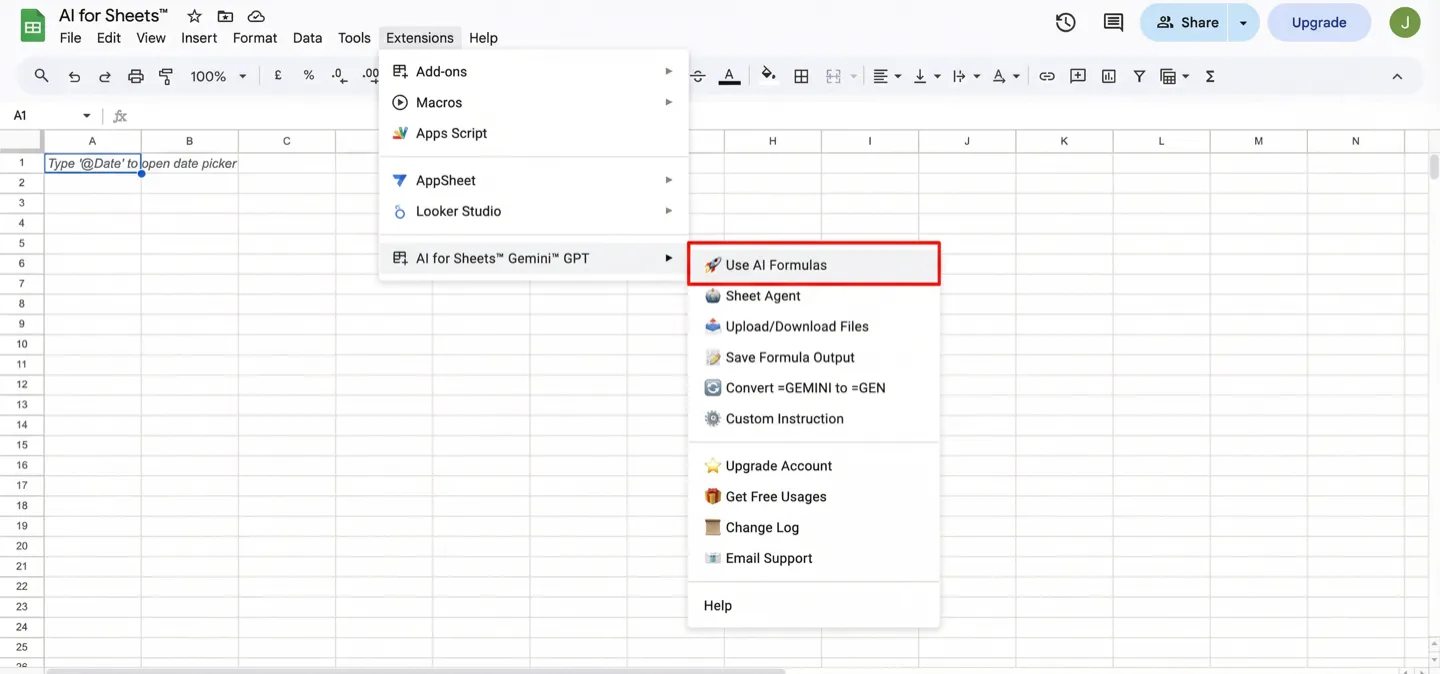
If you see #NAME? or an unknown-function error, this is the first fix to try.
You can also follow AI for Sheets formula errors for the exact troubleshooting steps.
Step 2: Get a working image URL
=VISION() needs an image URL that Google Sheets can access. The most reliable setup is to use
Upload/Download Files to generate a file URL that works with the formula.
This is especially helpful when your source image is private, stored in Google Drive, or not consistently accessible from a direct link.
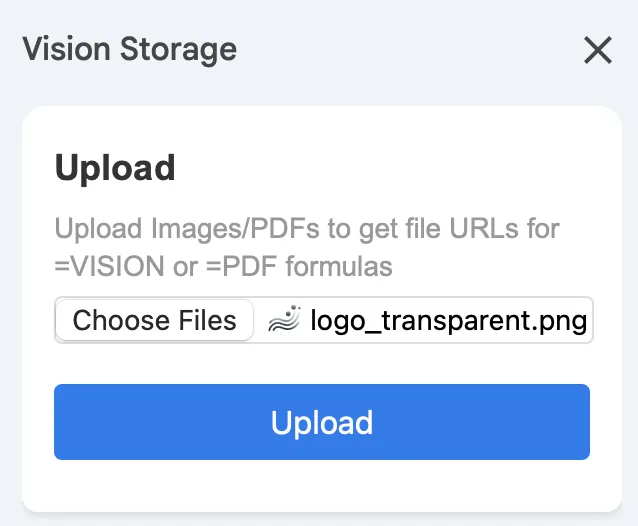
A common pattern is:
- Column A = image URL
- Column B = prompt
- Column C = output
If you want to use Google Drive links directly and they fail, follow how to make Drive images accessible.
Step 3: Extract text with =VISION()
For a general OCR pass, keep the prompt explicit and boring. This is a strong default:
=VISION("Extract all readable text. Keep line breaks.", A2)If you only need a basic text block, this is usually enough. If you need specific fields, be more direct about the output you want.
=VISION("Extract: merchant, date, total, currency, and line items. Return JSON.", A2)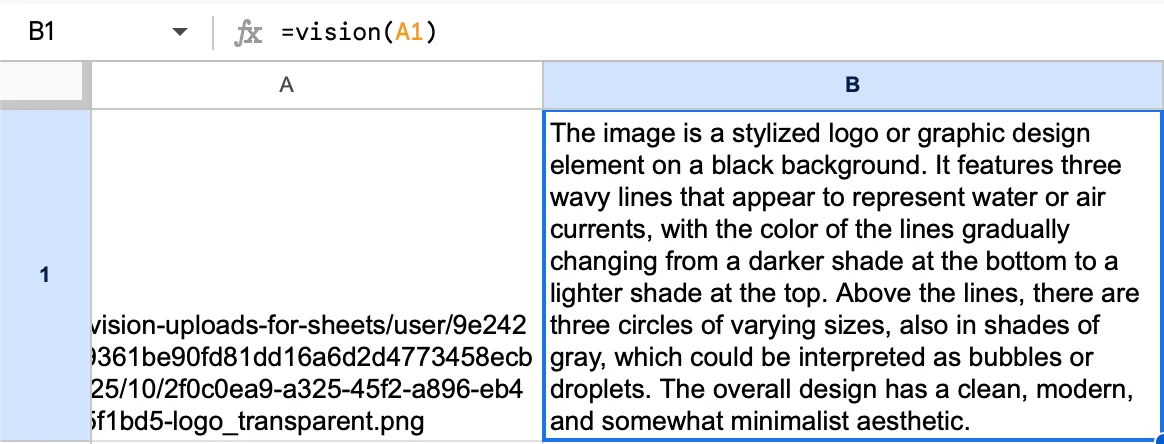
This is the useful part of doing OCR-style work in Google Sheets: the same sheet can store the file URL, the prompt, and the result, so you can review and reuse everything in one place.
Step 4: Turn OCR output into columns
Plain-text OCR is useful for reading, but structured output is better if you want clean spreadsheet columns. Two formats work especially well:
Option A: JSON
Best when you want reliable field extraction for downstream parsing or cleanup.
=VISION("Extract fields and return strict JSON with keys: name, email, phone, company.", A2)Option B: CSV
Best when you want something fast to split into columns or paste into a table.
=VISION("Return CSV with columns: date,total,currency. No extra text.", A2)If your OCR output needs to stay stable over time, keep the prompt wording consistent and save the result values. See Save formula output for a repeatable workflow.
Example prompts you can use
Extract all visible text from this imageRead the text in this screenshot and return it as plain textExtract the title, labels, and visible values from this screenshotExtract merchant, date, total, and currency. Return strict JSON.Return CSV with columns: item, quantity, price. No extra text.
Best use cases for this workflow
- Receipt tracking: pull merchant, date, and amount into review columns.
- Document intake: turn image-based records into searchable spreadsheet rows.
- Research capture: pull text from screenshots into a table for analysis.
- Catalog cleanup: extract visible text from labels or packaging into a sheet.
Troubleshooting
- Result is empty or errors: the URL is probably not accessible. Re-check permissions or use Upload/Download Files.
- Google Drive image links fail: use the correct Drive sharing setup or generate a working file URL through the add-on.
- Text is wrong or missing: try a higher-resolution image, crop to the relevant area, or add constraints such as “Only read the top half” or “Ignore background”.
- Need field-level consistency: ask for JSON or CSV instead of plain text.
- Need repeatable workflows: keep prompts consistent and save outputs after review. See Save formula output.
Want more formulas?
If you do OCR-style work regularly, pair =VISION with formulas like =PDF and =ANALYZE.
See Formula reference and Getting started.
FAQ
Can Google Sheets extract text from images without scripts?
Yes. With AI for Sheets, you can run OCR-style extraction through =VISION() using an accessible image URL. This avoids Apps Script setup for the common workflow.
Is this basically OCR in Google Sheets?
Yes. In practical terms, this is a Google Sheets OCR workflow: read image content with =VISION() and return the result in spreadsheet cells.
Why does my Google Drive image URL fail?
Drive sharing links often do not behave like direct file URLs. Use Make Drive images accessible or upload the file through Upload/Download Files.
How do I extract specific fields into separate columns?
Ask for the exact fields you need and a strict format. For example: “Return JSON with keys: merchant, date, total, currency” or “Return CSV with columns: date,total,currency. No extra text.”
If you already work in Google Sheets, extracting text from images in the same sheet is usually faster and more practical than using a separate OCR tool and pasting the result back manually.
Start with a simple =VISION() prompt, then move to more specific prompts when you need field-level output.
Ready to try it? Start with Upload/Download Files if you need a working image URL, or explore Gemini AI for Sheets for more in-sheet workflows.