
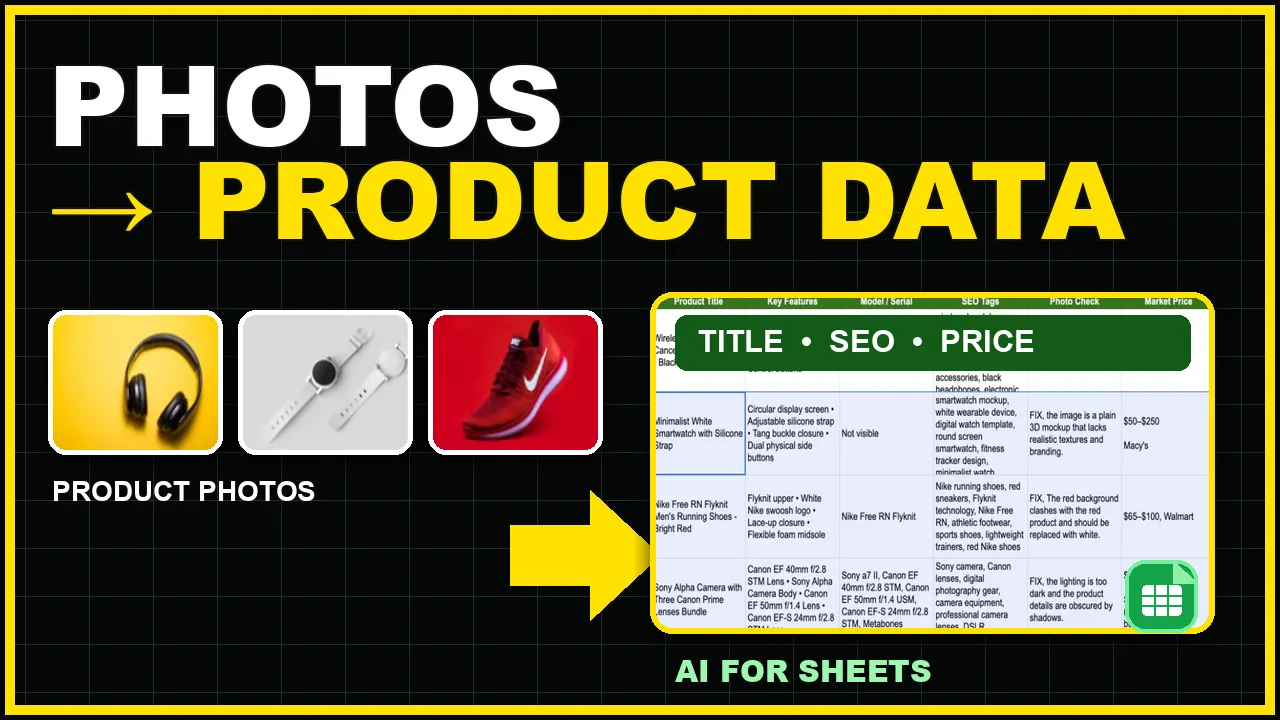
Product catalog work often starts with a folder of photos and no structured product data. Someone still has to write the titles, identify visible features, check model details, create search tags, review image quality, and research a reasonable price range.
With AI for Sheets, you can run that workflow inside Google Sheets.
The =VISION() formula reads each product photo, while =AISEARCH() adds live web research such
as a typical retail price and source.
Free Google Sheets template
Start with the working product catalog sheet
The template includes sample product photos, ready-to-use VISION and AISEARCH formulas, instructions, and a completed example.
Make a copy of the free templateWhat the sheet creates
- An ecommerce-ready product title
- Four visible product features
- Brand, model, or serial information visible in the photo
- Search and SEO tags
- A product-photo readiness check
- A typical current retail price range and source
How the product catalog template is organized
The workbook has three tabs:
- Start Here: installation, setup, and review instructions.
- Try the Template: editable image URLs and the working AI formulas.
- Example Result: a completed six-product catalog showing the intended output.
Each row represents one product. Column A contains the image URL, column B previews the photo, and the remaining columns contain generated catalog information.
Step 1: Install and open AI for Sheets
Install AI for Sheets from the Google Workspace Marketplace. In the copied spreadsheet, open Extensions → AI for Sheets → Use AI Formulas so that the custom formulas are available in that file.
If Google Sheets shows #NAME?, follow the steps in
AI formula errors. If the image preview cannot load, check that the URL is accessible
or use Upload/Download Files to create a usable file URL.
Step 2: Add the product image URLs
Replace the sample URLs in column A with your own product image URLs. The standard Google Sheets =IMAGE()
formula previews each image in column B:
=IMAGE(A5)Clear, well-lit images with one main product normally produce more reliable descriptions. If a product has important model text or packaging details, make sure they are readable in the source image.
Step 3: Create concise product titles
The first VISION formula turns the photo into a short ecommerce title:
=VISION("Write an ecommerce product title under 55 characters. Return title only.", A5)The length constraint helps keep the output usable in product feeds and online stores. You can change the prompt to match your preferred title format, but avoid asking the model to invent a brand or model that is not visible.
Step 4: Extract features, model details, and tags
Use separate columns so that every output is easy to review, filter, and export.
Visible product features
=VISION("List 4 visible product features separated by •. Return features only.", A5)Model or serial information
=VISION("Identify the brand, model or serial number visible. Return Not visible if unclear.", A5)SEO and search tags
=VISION("Return 8 SEO tags, comma-separated.", A5)Keeping these tasks separate makes the spreadsheet more useful than one long AI response. You can approve a title, correct a model number, or replace weak tags without regenerating the entire row.
Step 5: Check whether the product photo is store-ready
This prompt gives a simple pass-or-fix result with one reason:
=VISION("Is this photo ready for an online store? Return PASS or FIX, then one short reason.", A5)This is a fast first-pass review for issues such as poor centering, distracting reflections, low light, or a background that competes with the product. It should support human review, not replace your marketplace or brand image standards.
Step 6: Research a typical market price
Once the product title exists, AISEARCH can use it as the search query:
=AISEARCH("Find the typical current retail price in USD for "&C5&". Return one price range and one source name.")Price research changes over time and can vary by country, condition, seller, and exact model. Treat this column as a research starting point and verify it before publishing a live price or making a purchasing decision.
Step 7: Fill the formulas down the catalog
After checking the first row, copy the formulas down for the remaining products. This turns the sheet into a batch catalog-building workflow: add image URLs, fill the formulas, review the results, and save the approved values.
For larger jobs, see how to run bulk AI tasks in Google Sheets. When the outputs are final, lock the AI results so the approved catalog data remains stable.
Where this workflow is useful
- Ecommerce catalog setup: create draft product records from supplier or studio photos.
- Marketplace listings: prepare titles, visible features, and search tags for review.
- Inventory cleanup: add structured information to rows that only contain an image.
- Reseller research: identify products and collect a directional market price.
- Photo quality control: flag obvious image issues before a listing is published.
What to review before publishing
- Confirm brand and model details against packaging, source files, or supplier records.
- Remove tags that are too broad, repetitive, or unsupported by the image.
- Check dimensions, materials, compatibility, and other facts not visible in the photo.
- Verify market prices against the exact product condition, region, and model.
- Keep human approval in the workflow before exporting catalog data to a live store.
FAQ
Can Google Sheets create a product catalog from photos?
Yes. With AI for Sheets, =VISION() can read each accessible product image and create structured fields such as a title, visible features, model details, tags, and a photo-quality check.
Does the template work without AI for Sheets?
The standard =IMAGE() previews will work in Google Sheets, but the VISION and AISEARCH columns require the AI for Sheets add-on. Install it and open Extensions → AI for Sheets → Use AI Formulas in the copied file.
Can I use Google Drive product photos?
Yes, but the formula needs an accessible image URL. If a Drive sharing URL does not work directly, use the add-on's Upload/Download Files feature or follow the Drive image accessibility guide.
Are the generated product details always accurate?
No. AI output should be reviewed, especially brand, model, serial, compatibility, price, and any detail that is not clearly visible in the image. The workflow creates a strong draft, not an automatically approved live catalog.
Can I add more catalog columns?
Yes. Add more VISION columns with focused prompts for the fields you need, such as colour, material, condition, packaging text, or a short product description.
Build your first AI product catalog
Copy the template, replace the sample image URLs, and test the first product row before filling the formulas down.