
Quick answer
- Install AI for Sheets from Google Workspace Marketplace.
- Open a Google Sheet.
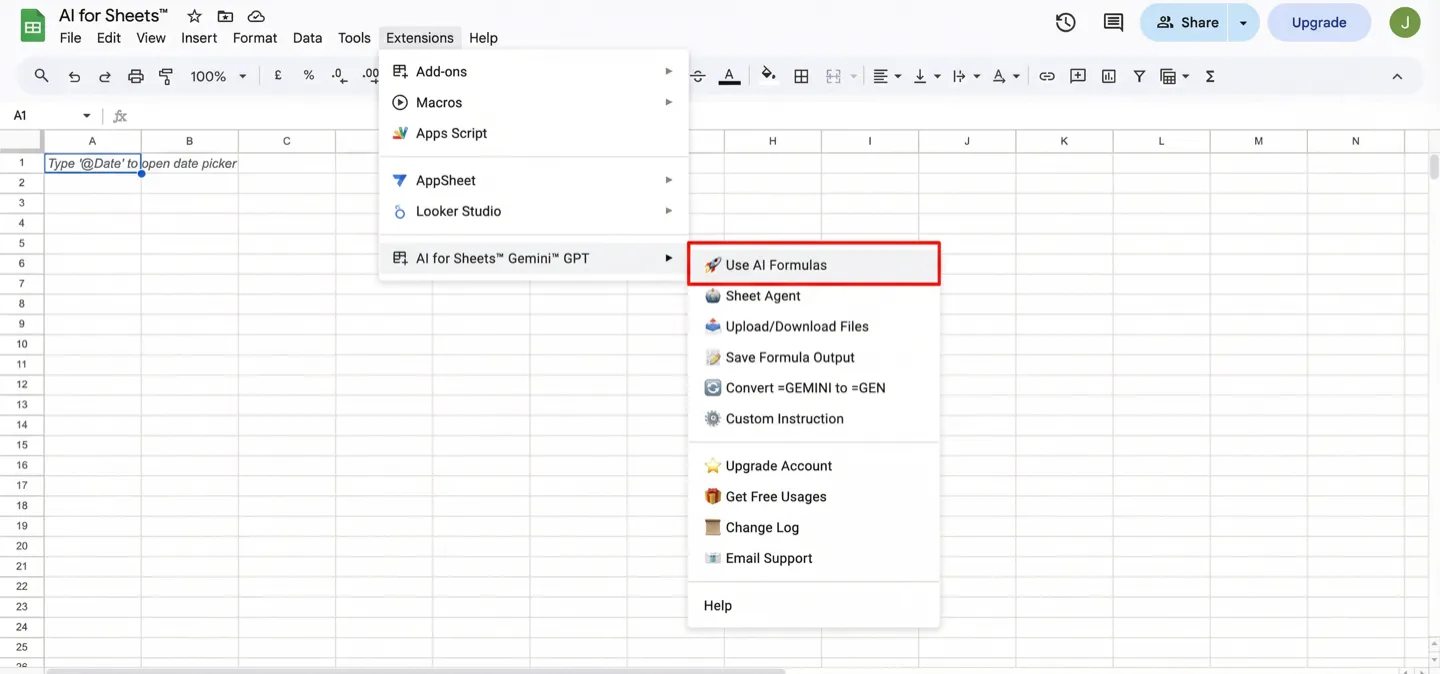
- Go to Extensions → AI for Sheets → Use AI Formulas.
- Type
=GEN("Write a short product description for running shoes")into a cell. - If you need sheet-wide analysis, open Sheet Agent from the same menu.
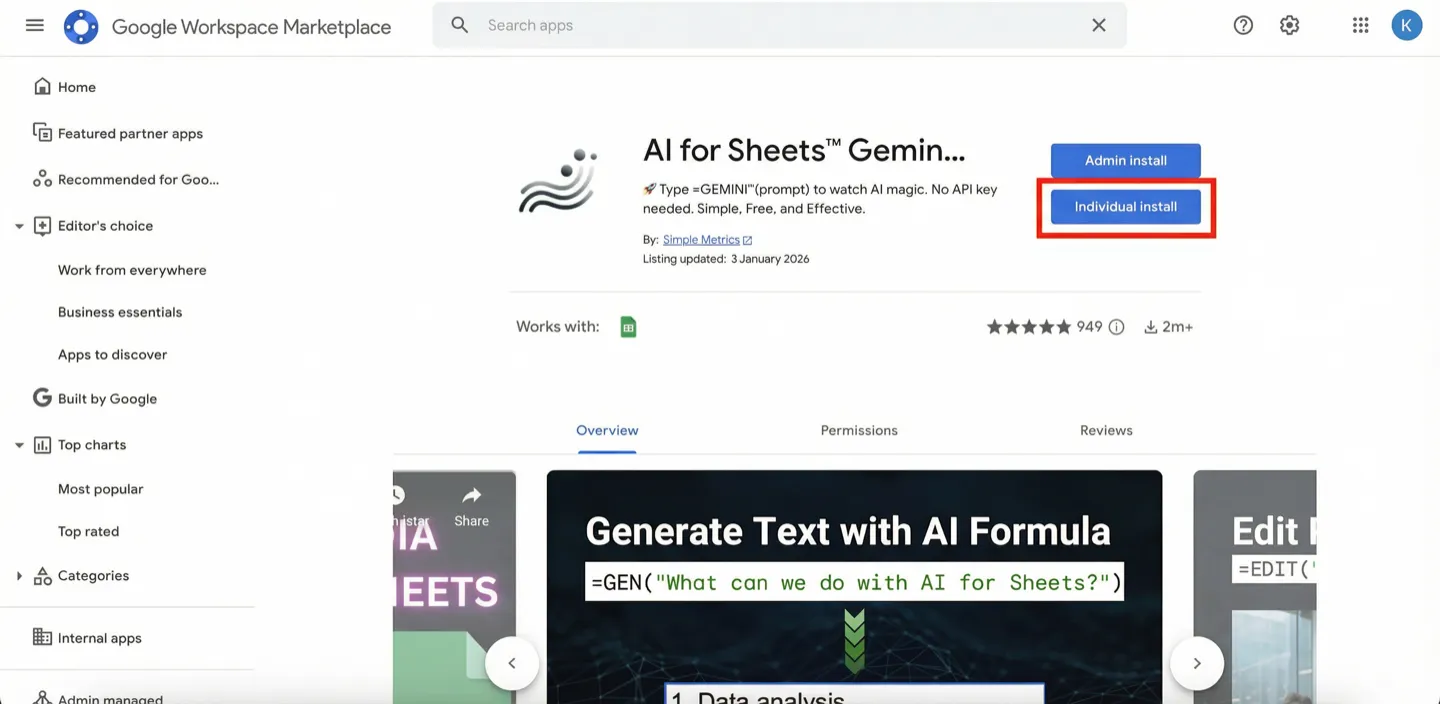
Step 1: Install from Google Workspace Marketplace
Open the marketplace listing and click Individual install: AI for Sheets .
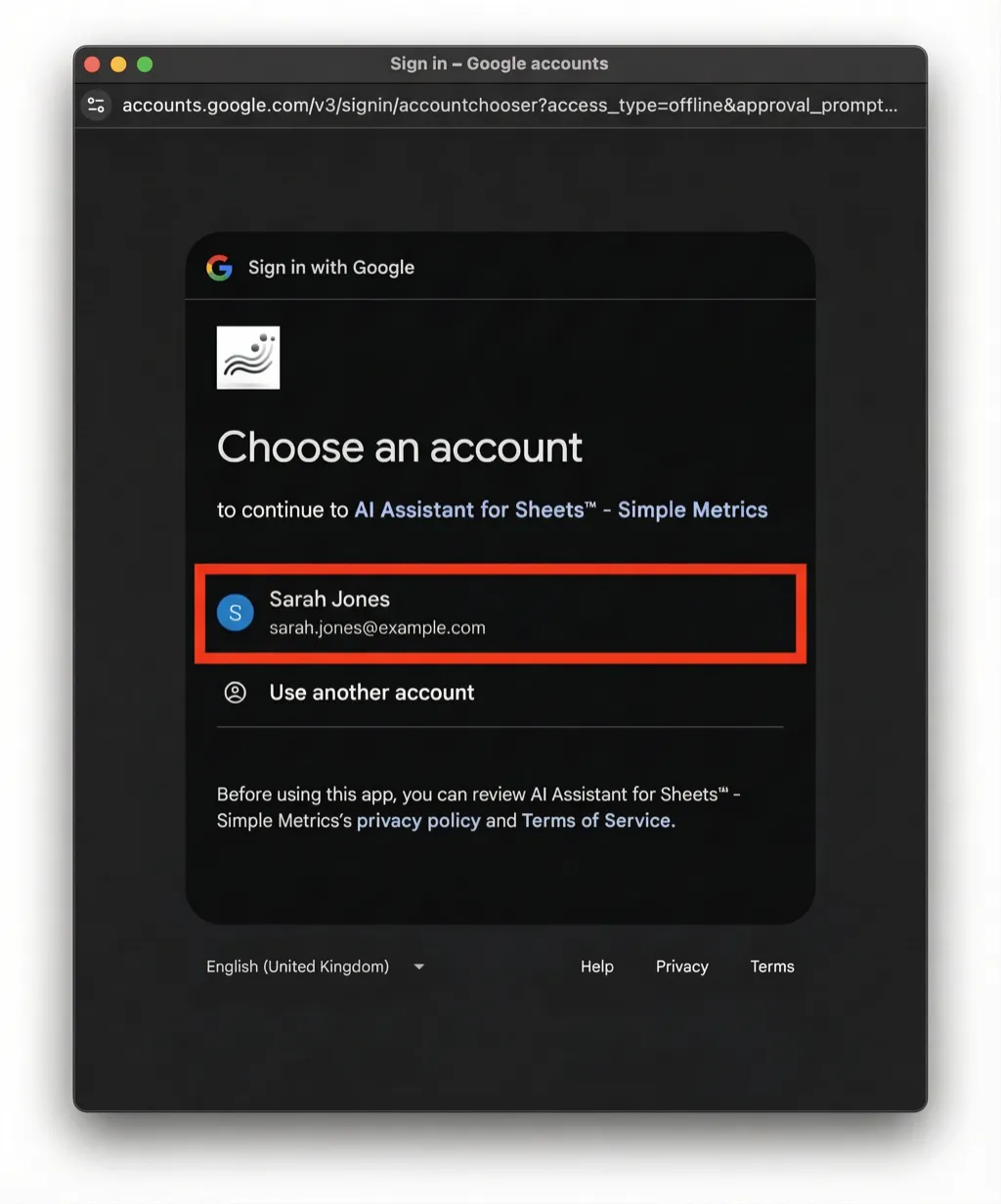
Step 2: Choose your Google account
Select the Google account you use with Google Sheets.
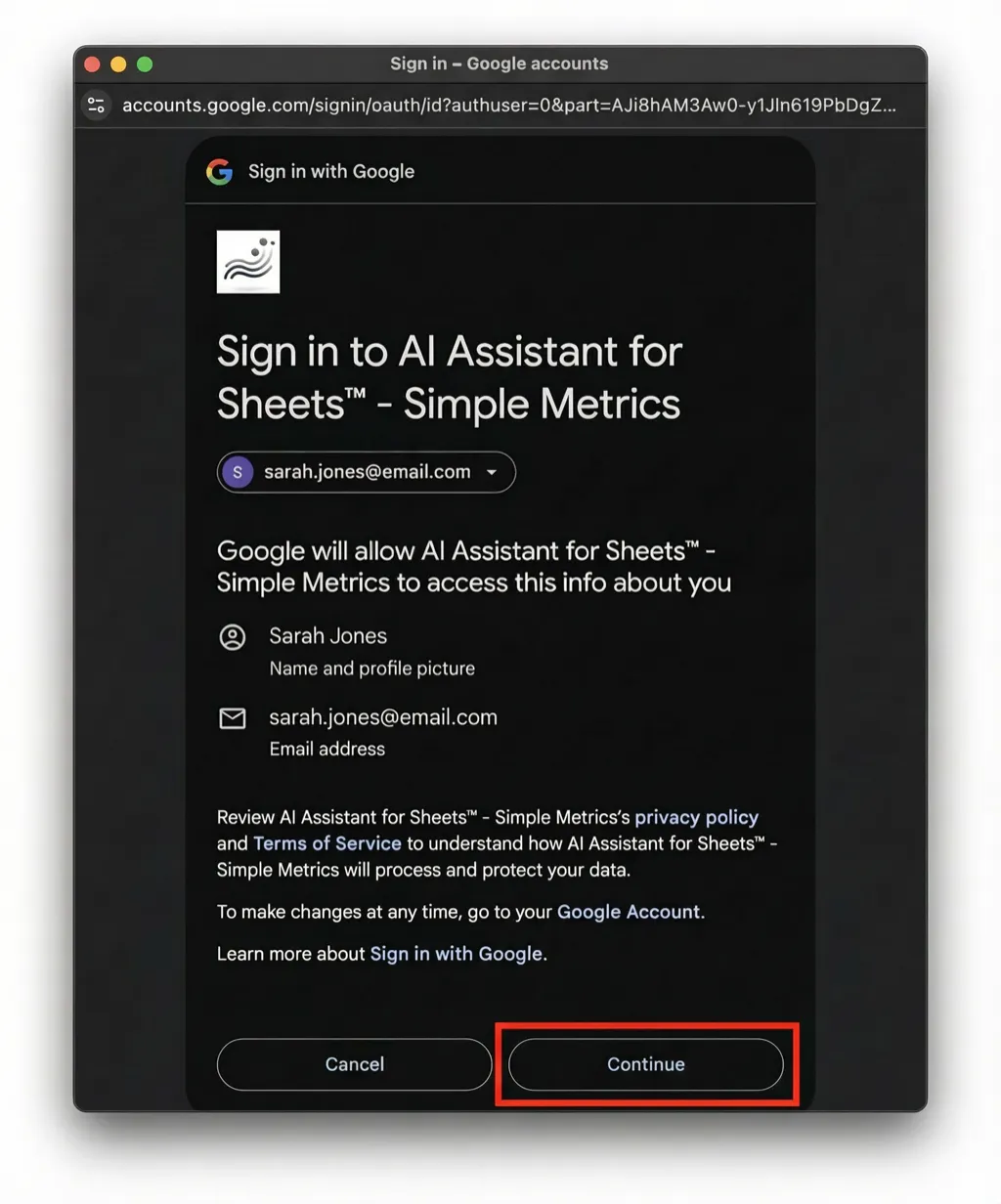
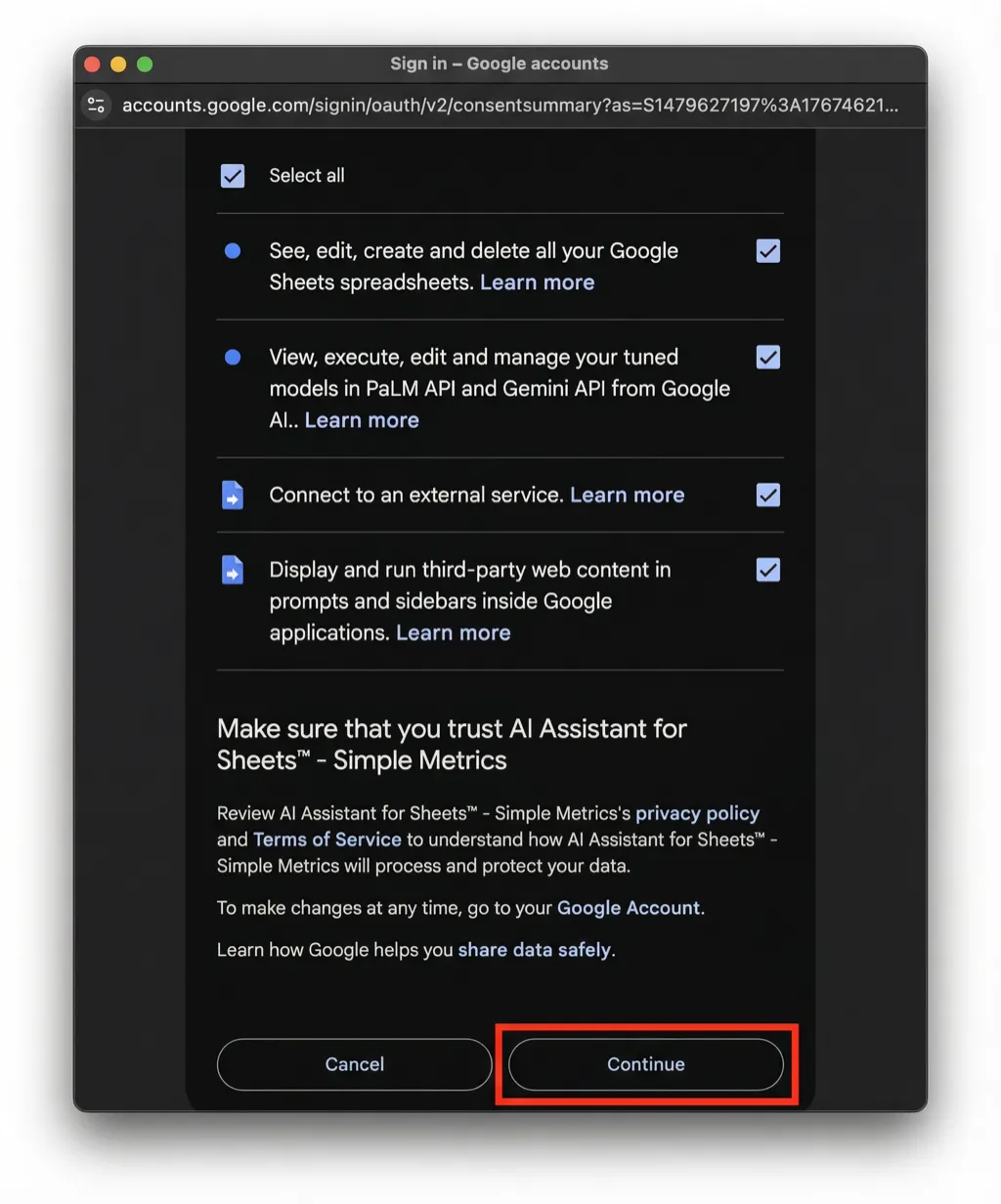
Step 3: Click Continue
When Google asks you to confirm the sign-in, click Continue.
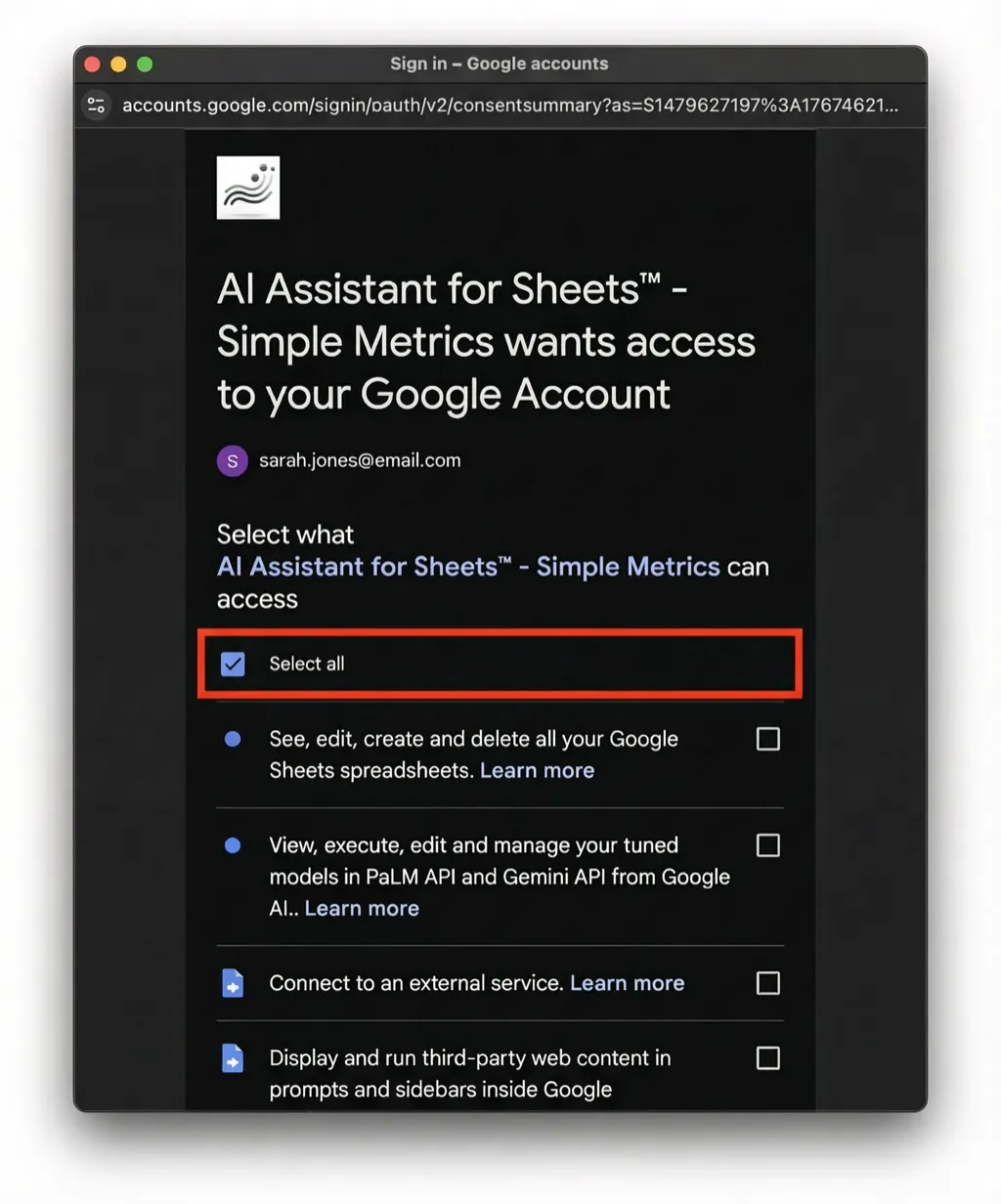
Step 4: Select all permissions
On the permissions screen, click Select all.
Step 5: Finish install
Scroll down and click Continue to complete the install.
Step 6: Open AI for Sheets in Google Sheets
Open a Google Sheet, then go to Extensions → AI for Sheets → Use AI Formulas.
This is the correct place to start if you want to use =GEN() inside cells.
Step 7: Enter your first AI formula
Type a simple prompt into a cell and press Enter. Example:
=GEN("Write a short product description for running shoes")You can also use a cell reference, for example:
=GEN("Summarize this customer feedback in one sentence", A2)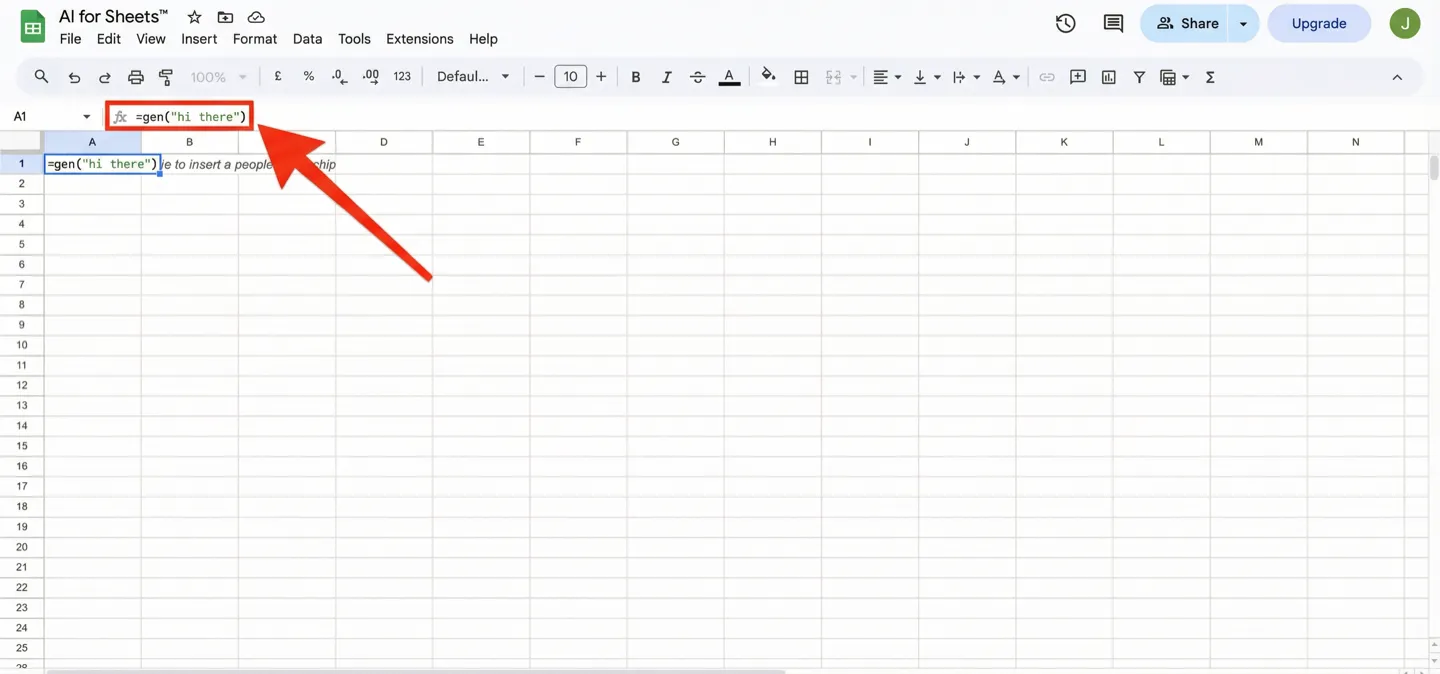
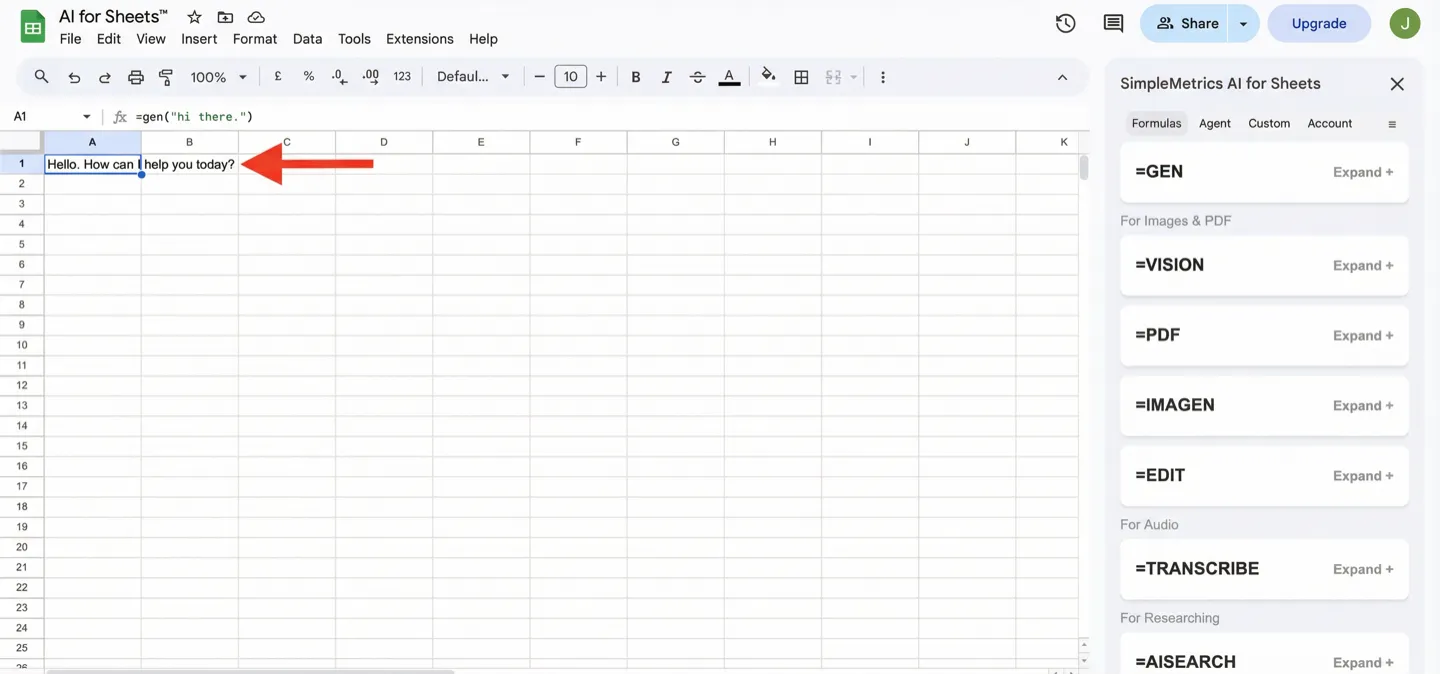
Step 8: Check the result
The response should appear in your cell. Once this works, you can fill the formula down to process many rows.
What to use after your first formula
- Use AI Formulas: best for row-by-row work like summaries, extraction, translation, classification, and writing.
- Sheet Agent: best when you want AI to analyze a whole sheet, not just one cell.
- Upload/Download Files: use this when you want a stable file URL for
=VISIONor=PDFworkflows.
Tips for a smoother first run
- Write prompts that say exactly what you want in one sentence.
- Use fill down to repeat the same AI task for many rows.
- If you are not sure which formula to use, see Formula reference.
- If images or PDFs are not accessible, see Make Drive images accessible.
Troubleshooting
- If you do not see the add-on menu after install, refresh the spreadsheet and open the file again.
- If the sidebar opens but you are blocked later during checkout or sign-in, see Allow pop-ups.
- If formulas do not work as expected, check Common issues or Fix formula errors.
- If you still need help, visit Contact support.
FAQ
Should I start with Use AI Formulas or Sheet Agent?
Start with Use AI Formulas if you want AI output inside cells. Use Sheet Agent when you want broader analysis across the sheet.
What is the easiest first formula to try?
Start with a plain =GEN() prompt like =GEN("Summarize this text", A2). It is the fastest way to confirm the add-on is working.
How do I use image or PDF files?
Use Upload/Download Files to generate a usable URL, then run =VISION() or =PDF().