
Step 1: Upload images to Google Drive
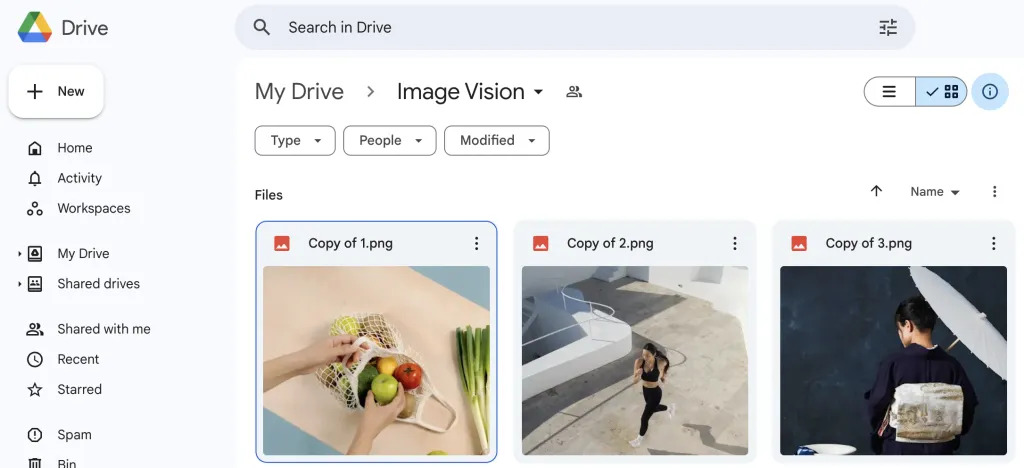
- Open Google Drive (
drive.google.com). - Click + New.
- Select File upload (or Folder upload).
- Choose the files or folder and upload.
Step 2: Change sharing settings
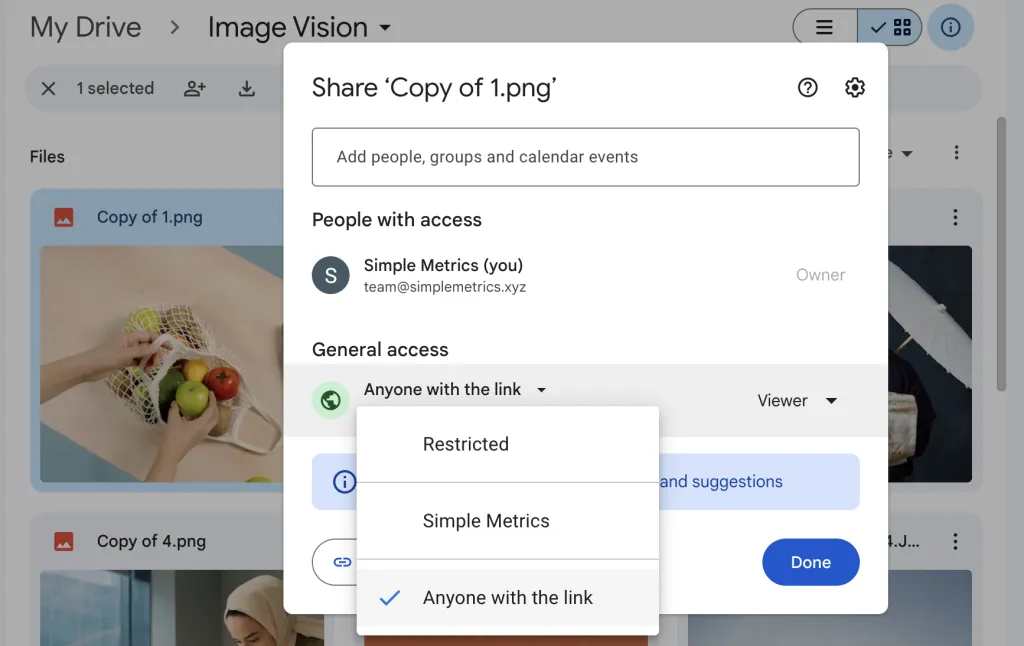
- Select the files you want to use.
- Right-click and click Share.
- Change General access to Anyone with the link (Viewer).
- Click Copy link.
Done. Here is a working example link format:
https://drive.google.com/file/d/1TY11t3YHHZYtDhiLZUG5-BKAI7OfT3iN/view?usp=drive_link
Step 3: Test the link in AI for Sheets formulas
AI for Sheets supports both one-argument and prompt + URL formats for =VISION and =PDF.
=VISION("https://drive.google.com/file/d/<FILE_ID>/view?usp=sharing")=PDF("extract invoice number", "https://drive.google.com/file/d/<FILE_ID>/view?usp=sharing")
Prefer not to change Drive sharing settings? Use Upload/Download Files to generate URLs that work with =VISION, =PDF, and =EDIT.
Troubleshooting when the image is still not accessible
- Confirm you copied the file link (not a local path or temporary browser URL).
- Re-open Drive sharing and verify it is still Anyone with the link.
- If your organization blocks sharing changes, use Upload/Download Files instead. (Uploaded files are temporary and auto-deleted after 7 days.)
- If formulas fail for account or sheet-owner reasons, check Common issues.
FAQ
Do I need “Anyone with the link” every time?
For direct Google Drive links in =VISION or =PDF, yes. The formula needs a fetchable file URL.
Can I keep Drive files private?
Yes. Use Upload/Download Files to generate compatible URLs without changing the original Drive sharing settings.
Where can I see more formula examples?
See Formula reference and Getting started for more examples and setup checks.
YouTube tutorial (first 26 seconds)
If you prefer video, this clip shows the sharing setting to use.