
Put one applicant answer per row, use one AI formula to score each answer against your rubric, then let normal Google Sheets formulas weight, rank and shortlist the results. You read the shortlist and make the decision.
This guide uses AI for Sheets and a free template with 20 fictional applicants for a junior Unity developer role. The same setup works for admissions statements, grant applications and open-ended survey answers.
Free Google Sheets template
Start with the working applicant scoring sheet
The template includes a sample role, a calibrated scoring prompt, 20 fictional answers, ranking formulas and a completed example you can view before installing anything.
Make a copy of the free template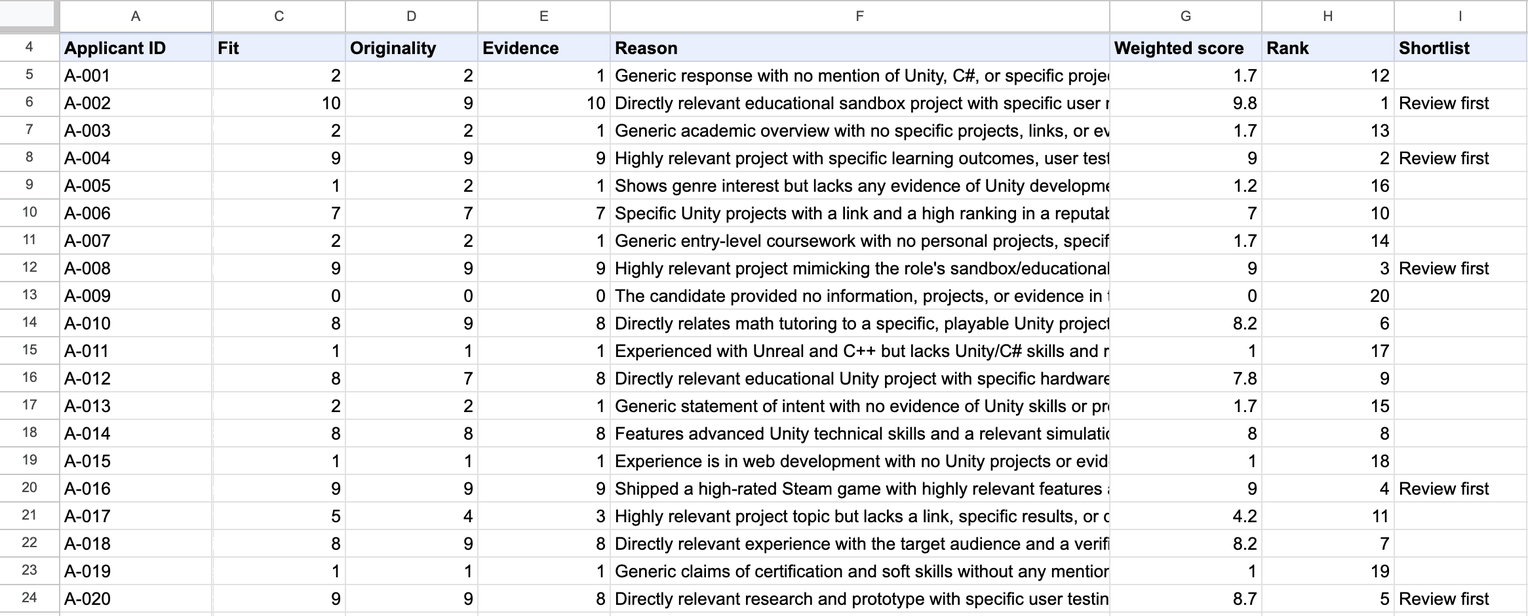
Results from the template's 20 fictional applicants. The answers column is hidden here to make the scores readable.
What the sheet does
- Scores each answer from 0 to 10 for fit, originality and evidence
- Adds a one-line reason you can check
- Calculates a weighted score with a normal formula, using your weights
- Ranks every answer and flags the top five to review first
- Uses applicant IDs, not names
What do you need before you start?
- AI for Sheets from the Google Workspace Marketplace. In your copy, open Extensions → AI for Sheets → Use AI Formulas so the formulas work in that file.
- One row per applicant, with an ID and the written answer. If you collect applications with Google Forms, copy the answer column from the responses sheet. If you use an applicant tracking system, export a CSV. Remove names, contact details, photos, age and graduation years first.
- A short role description and two to four criteria you would be happy to explain to an applicant.
If a formula shows #NAME?, follow AI formula errors.
How is the template set up?
The Score Applicants tab has everything on one screen:
- B1: the role description.
- B2: the scoring prompt with your rubric.
- C3:E3: the weight for each score.
- Row 5 down: applicant ID in column A and the answer in column B. The sample has 20 rows; add as many as you need.
- C to I: fit, originality, evidence, reason, weighted score, rank and shortlist.
Start Here has the setup steps. Example Result holds a completed run as static values, sorted by rank, so you can see the output before installing the add-on.
How do you stop the AI giving everyone a 7?
Give it calibration examples. Without them, AI scores tend to bunch in the middle, which makes ranking useless. Define each criterion in one sentence, then show what a low, middle and high answer should score. This is the prompt in B2:
Score this job application answer against the role.
Fit = relevant Unity/C# skills and projects for this role.
Originality = specific and personal, not generic.
Evidence = named projects, links, users, results or other checkable detail.
Each score is an integer from 0 to 10.
Calibration: a generic answer with no project = 2|2|1.
One relevant personal project with a link = 7|6|7.
Several shipped, relevant projects with specific results = 9|8|9.
Ignore name, age, gender, nationality and any other protected characteristic.
Reply with one line only: three numbers and one short reason separated by |, with no labels.
Example reply: 4|5|3|Mentions a relevant project but gives no link or results.
If you paste this into your own sheet, double-click B2 first so all the lines stay in one cell.
The last two lines matter. In our first test run, before we added with no labels, 9 of 20 answers came back as
fit:10|..., which broke the next step. With that phrase and the example reply, all 20 came back in the
right format.
Rewrite the criteria and the three anchors for your role. For more prompt patterns, see how to write effective prompts.
For example, for a customer support role you could replace the criteria and anchors with:
Fit = customer-facing experience relevant to this role.
Clarity = clear, friendly and well-organised writing.
Evidence = specific situations, numbers or outcomes.
Calibration: a generic answer with no example = 2|3|1.
One specific customer situation and how it ended = 7|7|6.
Several examples with measurable results = 9|8|9.
Keep the scoring instructions and the reply format lines from the original prompt, and rename the column headers to match.
What formula scores each answer?
Put this in C5. It sends the prompt, the role and the answer to the AI, then splits the reply across C5:F5:
=IF(B5="","",SPLIT(GEN($B$2,"Role: "&$B$1&CHAR(10)&"Answer: "&B5),"|"))
A reply such as 9|8|9|Highly relevant project with user testing and a link. becomes three scores and a
reason. Empty rows are skipped. Check the first five rows, adjust the prompt if needed, then fill the formula down. For
hundreds of rows, see how to run bulk AI tasks in Google Sheets.
How do you weight, rank and shortlist?
These are normal Google Sheets formulas, so the weighting is your decision, not the AI's.
Weighted score (G5):
=IF(C5="","",IFERROR(ROUND(C5*$C$3+D5*$D$3+E5*$E$3,1),""))Rank (H5), with ties broken by row order:
=IF(G5="","",RANK(G5,$G$5:$G)+COUNTIF($G$5:G5,G5)-1)Shortlist flag (I5):
=IF(H5="","",IF(H5<=5,"Review first",""))The template weights fit at 0.5, evidence at 0.3 and originality at 0.2. Change C3:E3 to match what matters for your role, keeping the total at 1, and change the 5 to your shortlist size. The rank range runs to the bottom of the sheet, so new rows are included automatically.
How do you reduce bias when scoring applicants with AI?
- Blind the data. Use IDs. Remove names, emails, photos, dates of birth, graduation years and addresses before pasting answers.
- Do not rely on the prompt alone. "Ignore protected characteristics" helps, but indirect clues such as schools, clubs or career gaps can still influence scores.
- Score only job-related criteria. If you could not explain a criterion to an applicant, remove it.
- Check outcomes. Where you can lawfully do so, compare shortlist rates across groups using data kept outside the scoring sheet.
- Lock reviewed results. AI output can vary between runs. Lock the AI results and keep the prompt you used with the scores.
- Keep the decision human. Use scores to decide what to read first, not to reject anyone automatically. Spot-check low scores too.
Is it legal to use AI to screen job applicants?
Often yes, but the rules depend on where you and your applicants are, and some places add extra duties:
- New York City: Local Law 144 requires a bias audit within one year, a published summary and advance notice to candidates before using an automated employment decision tool.
- UK: UK GDPR restricts decisions made solely by automated means that significantly affect people. The ICO gives e-recruiting without human intervention as an example, and people must be able to get human review and challenge the decision.
A person reviewing every shortlist and rejection, telling applicants that AI assists screening, and keeping records reduces risk. This is not legal advice. Check with an adviser before using AI scoring in real hiring.
What else can you score with this template?
- Admissions statements: score course or programme applications against published criteria. The same safeguards apply.
- Grant and scholarship applications: score impact, feasibility and evidence.
- Survey and feedback answers: score urgency or detail. See how to summarize customer feedback with AI.
- Competition entries and award nominations: score against the judging criteria before the panel meets.
Change the context in B1, the criteria and anchors in B2, and the weights in C3:E3.
FAQ
Can Google Sheets rank job applicants automatically?
Google Sheets can calculate weighted scores and ranks with normal formulas. AI for Sheets adds the =GEN() formula to score written answers against your rubric. A person should still review the shortlist and make the decision.
Why are all my AI scores around 7?
The prompt has no calibration. Add three examples with exact scores for a weak, average and strong answer, as in the template prompt.
Why does SPLIT put everything in one column?
The reply probably contains labels or extra text. Ask for three numbers and one reason separated by | with no labels, and include an example reply in the prompt. See AI formula errors for other errors.
Will the scores change when the sheet recalculates?
AI output can vary between runs. After reviewing the scores, lock the AI results to keep them fixed.
Can I score CVs instead of short answers?
Yes. Paste CV text into column B, or use =PDF(prompt, pdf_url) to read a CV file directly. PDF CVs usually include names, photos and dates, so blind scoring is harder. Pasted text with personal details removed is safer.
How much does it cost to score 200 applicants?
Each applicant is one =GEN() request. Check your plan on the pricing page and your remaining usage in daily limits. Test five rows first so you only fill down a prompt that works.
Where does the applicant data go?
Each answer is sent to an AI model to be scored. AI for Sheets uses enterprise AI models that do not use your data to train their models. See the privacy policy, and tell applicants in your own privacy notice that AI assists screening.
Does the template work without AI for Sheets?
The Example Result tab shows a completed run as static values. The scoring formulas need the AI for Sheets add-on, enabled with Extensions → AI for Sheets → Use AI Formulas in your copy.
Sources
- https://www.nyc.gov/site/dca/about/automated-employment-decision-tools.page
- https://ico.org.uk/for-organisations/uk-gdpr-guidance-and-resources/individual-rights/individual-rights/rights-related-to-automated-decision-making-including-profiling/
Score your first applicants
Copy the template, replace the role and rubric, and test five answers before filling the formulas down.